
Scheduling Ads with PostEngine for Chrome
Before you start: Installing the PostEngine Chrome extension
Overview
This article walks you through scheduling an ad using the PostEngine Chrome extension and where to manage it once it's queued.
Please note: the ability to schedule posts with the PostEngine Chrome extension is not enabled by default. To request this feature, please Contact Support
Scheduling a post
-
In Google Chrome, navigate to your property website's floorplans page and click the Post Now button for the unit you'd like to post for.
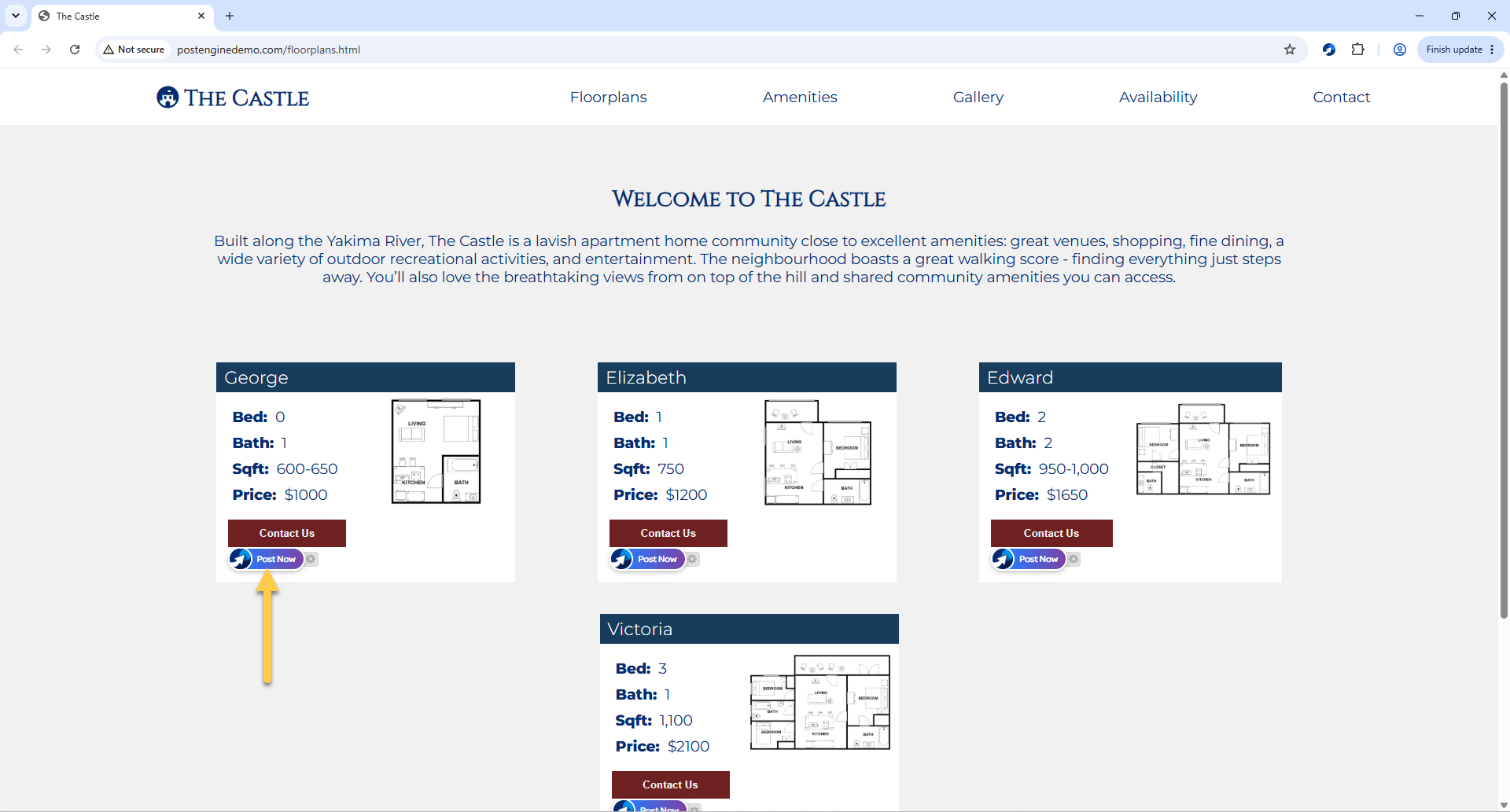
- Review the drafted Ad Preview and edit the content here if needed.
-
Scroll to the bottom and use the calendar to select the date for your post. Posts can be scheduled up to 7 days in advance.
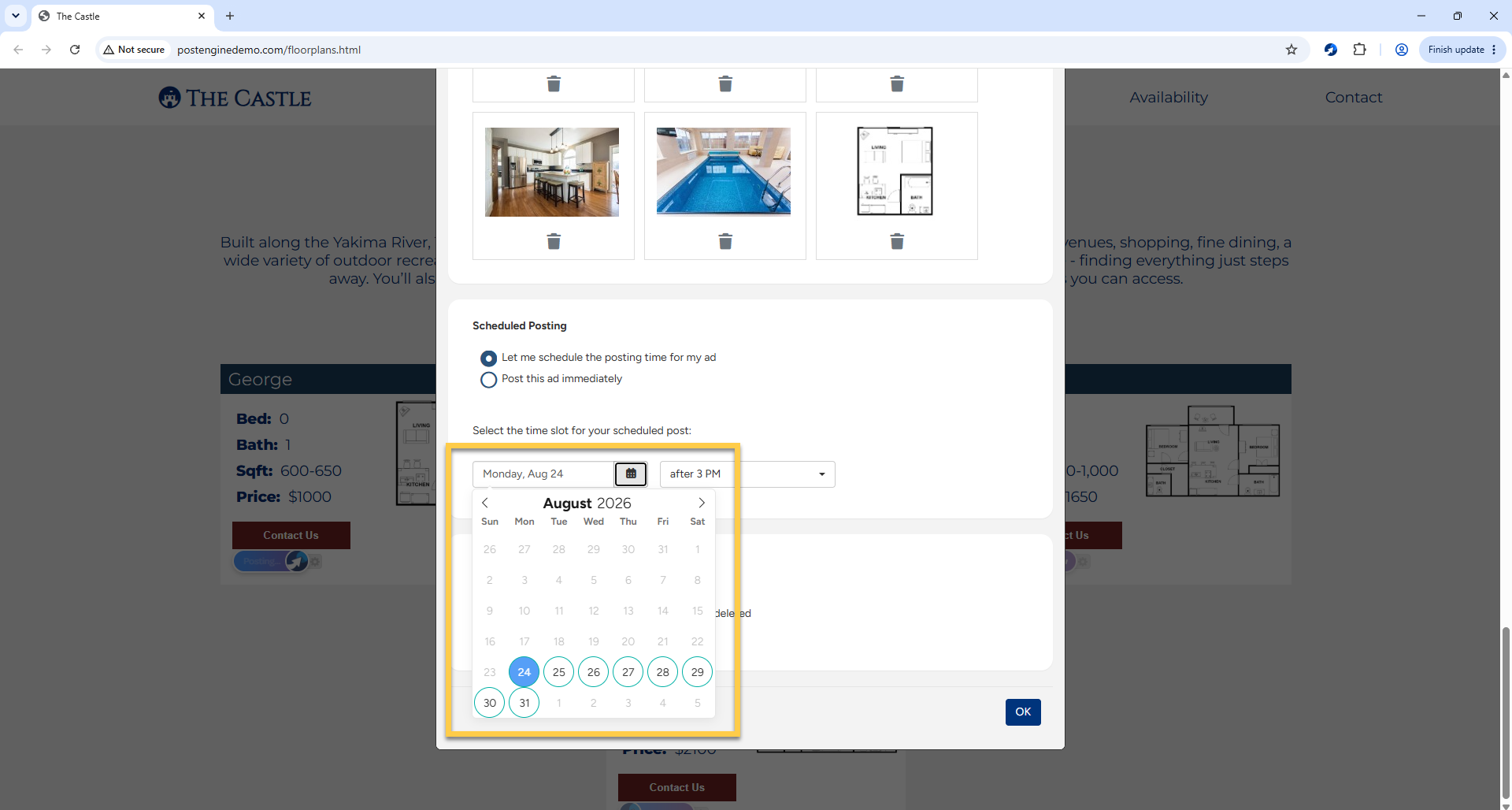
-
Use the drop-down menu to select an available time slot for your scheduled post (only one post per time slot).
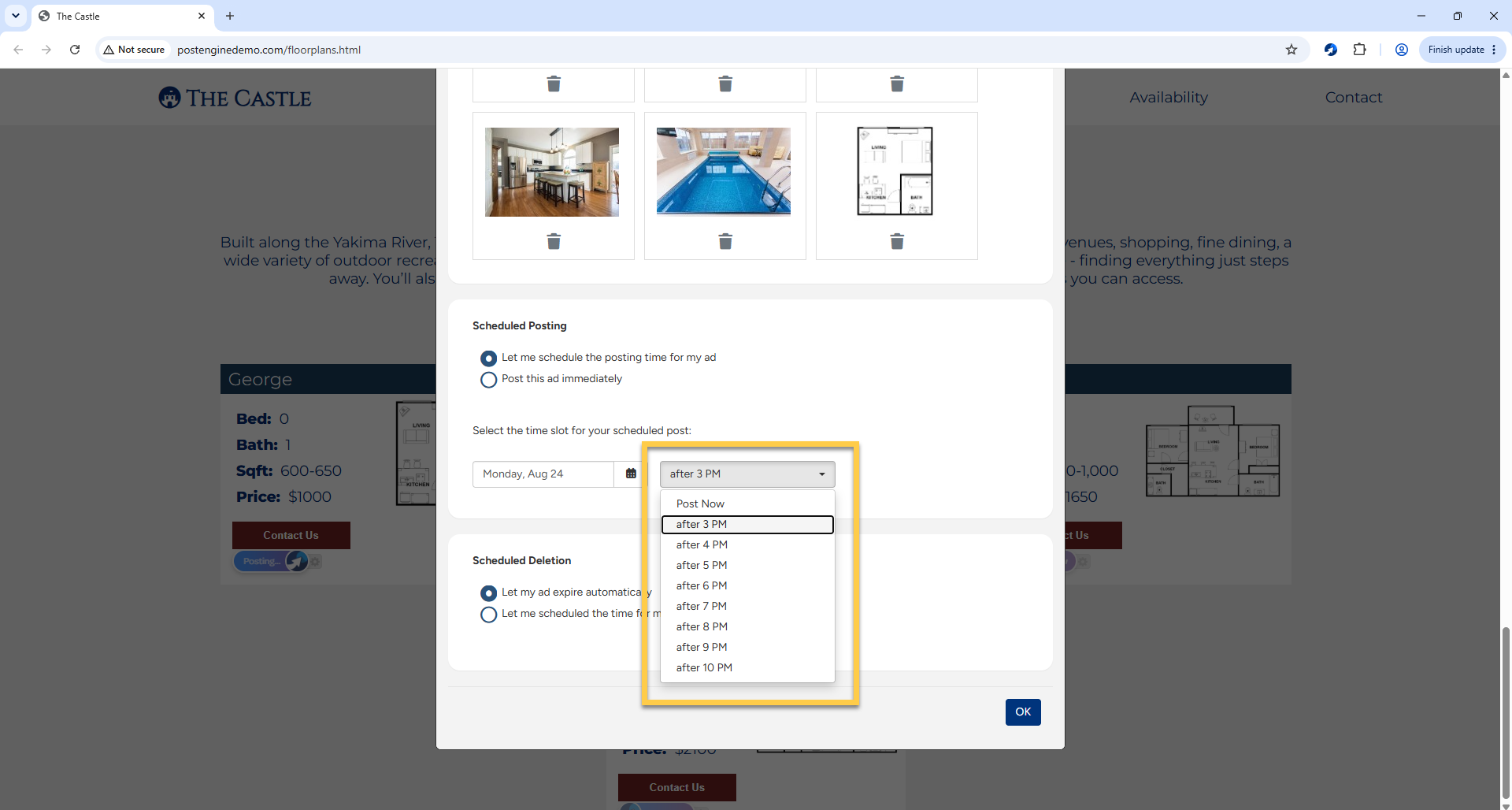
- Click OK. The Preview window will close automatically. The ad has now been scheduled and will be auto-posted at the time you selected.
Please note: the Google Chrome browser must be kept open and running on the computer all day so that PostEngine can post your ads at the scheduled times. You will see tabs open and close as PostEngine completes these processes, do not close the tabs! Interrupting the posting process will cause scheduled ads to fail.
Managing scheduled posts
-
Click on the puzzle-piece icon in the upper right corner of the Chrome browser window. Then, click PostEngine by Rooof.
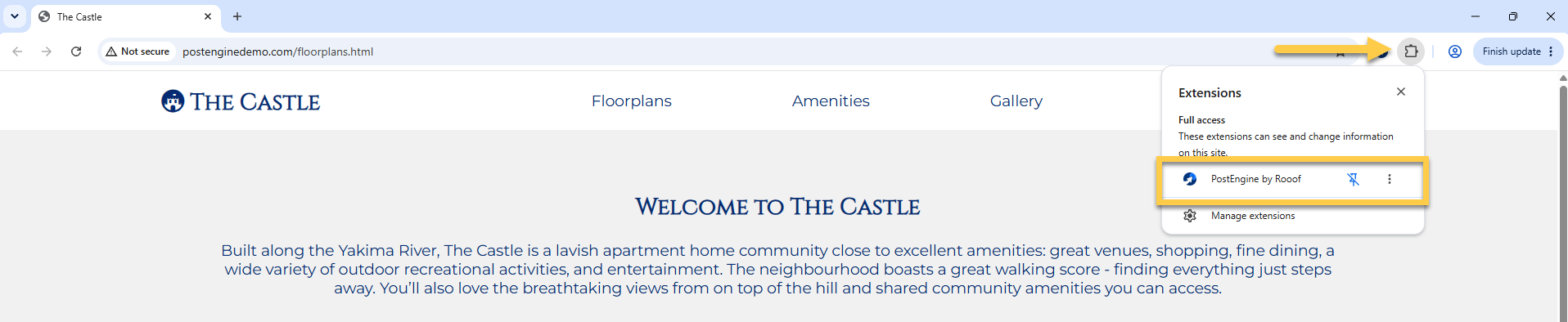
-
Click Settings.
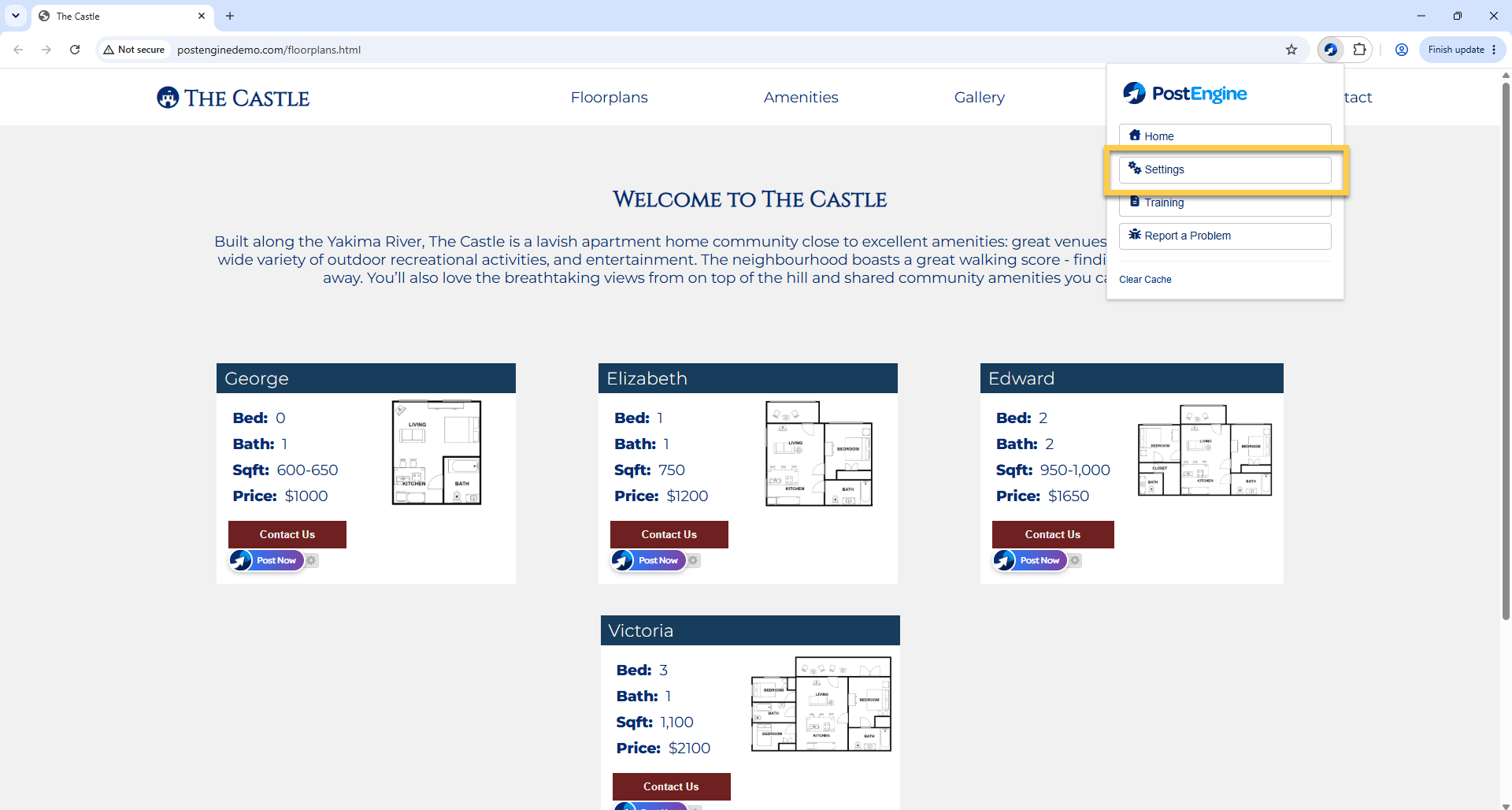
-
Click Scheduled Posts in the left-hand sidebar to view the status of the posts you've scheduled.
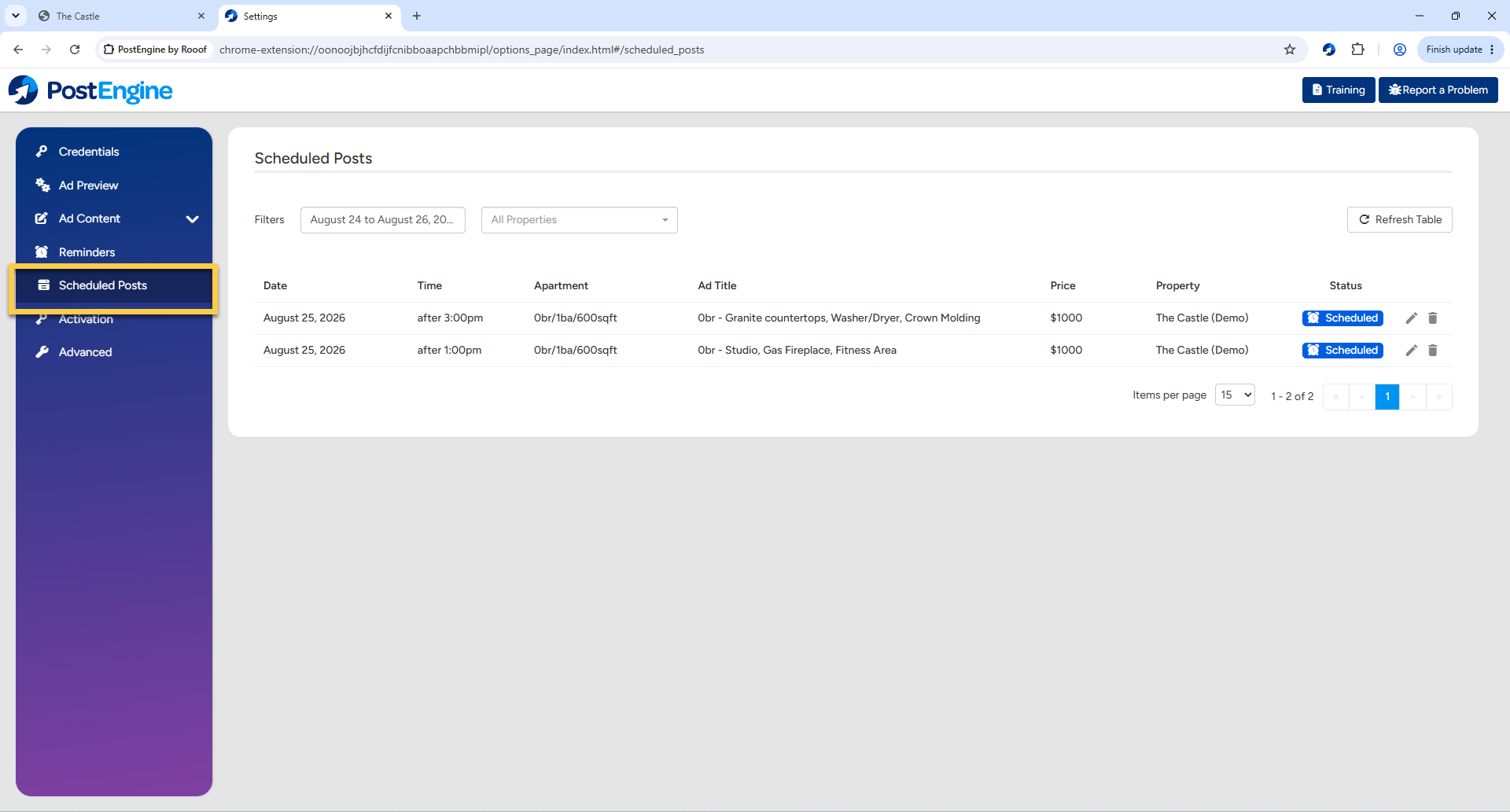
- You can edit the content of your Scheduled Posts while they are in the Scheduled state. To edit, click the pencil icon.
-
The Preview form will open. You can now make changes to the content of the post. When you're done, scroll to the bottom and click Save Changes.
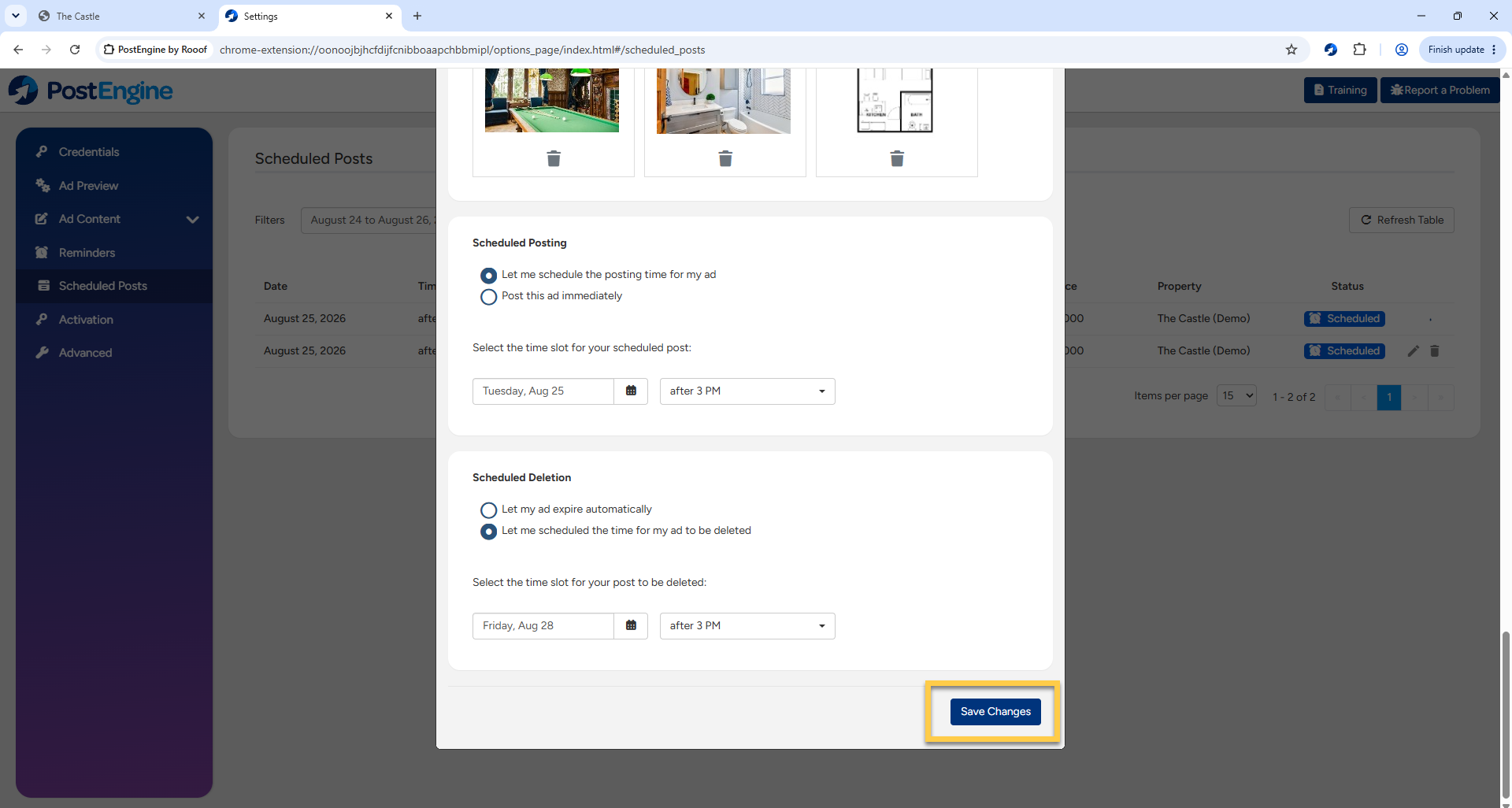
-
You can also delete your Scheduled Posts while they are in the Scheduled state. To delete, click the trash can icon next to the post. Click Remove Post to confirm.
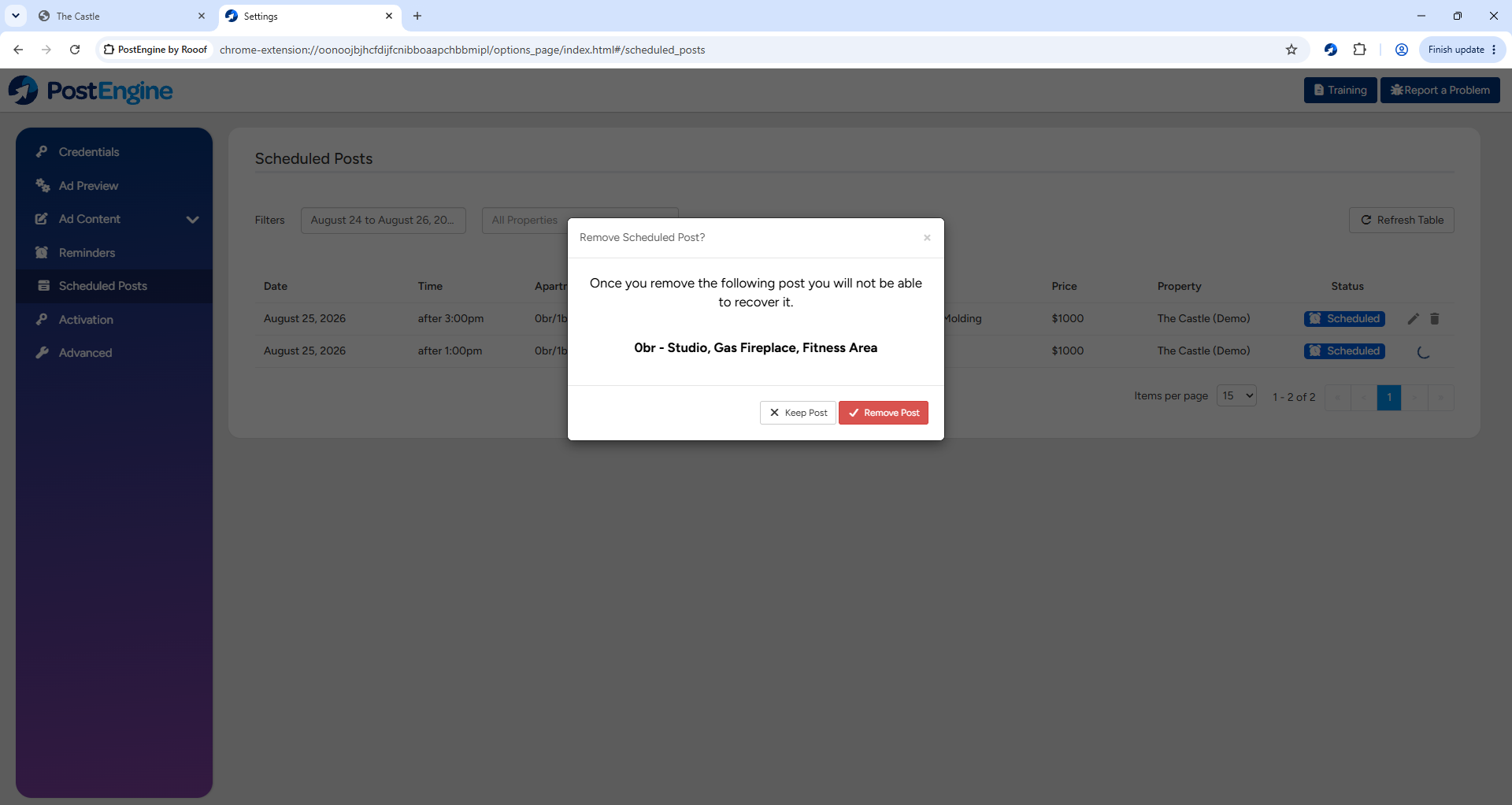
Once a scheduled ad has been successfully published, the status will update to "Posted." If the ad has failed, it will also note that. See Troubleshooting Failed Scheduled Posts
Troubleshooting
I can't find my Post Now buttons.
Make sure you're viewing the Floorplans page of your property website in the Google Chrome internet browser! If you don't see Post Now buttons next to each available unit on the floorplans page, please reach out to us at help@rooof.com.
All of the time slots are greyed out, and I can't schedule my post.
You can schedule only one post per hour, and the time slots are shared by everyone posting into your Craigslist account. If the timeslot is greyed out, someone else has scheduled an ad in that spot!
I need to make a change to one of the posts I scheduled.
Click to view the Scheduled Posts queue. If your post is still in the Scheduled state you can edit the content, click the pencil icon to make changes.
Can I schedule the same ad in more than one time slot?
No, you need to create a new ad for each time slot. This is because Craigslist will start to flag and delete your ads from the listings page if you post the exact same ad more than once. For more info: Craigslist flagging
Can I use the Post Now option?
Yes, if you'd like to post the ad to Craigslist right away, you can select the "Post this ad immediately" option at the end of the Ad Preview instead of scheduling. If you're using this option, be careful not to overpost!
My scheduled posts are failing.
Make sure the Chrome browser is left running on your computer throughout the day so that PostEngine can post your scheduled ads. If you are leaving it running and posts are still failing, please reach out to us at help@rooof.com.