
Managing Activation Codes in PostEngine for Desktop
In this article
Overview
Activation codes are property-specific and required to activate PostEngine and begin posting ads for your property(s). If you manage multiple properties, you can add multiple activation codes and switch between them as needed.
What is an activation code?
Activation codes ensure PostEngine functionality and accurate reporting for your property. You will need to enter an activation code when you're installing PostEngine so that the software knows which company and property you're posting for.
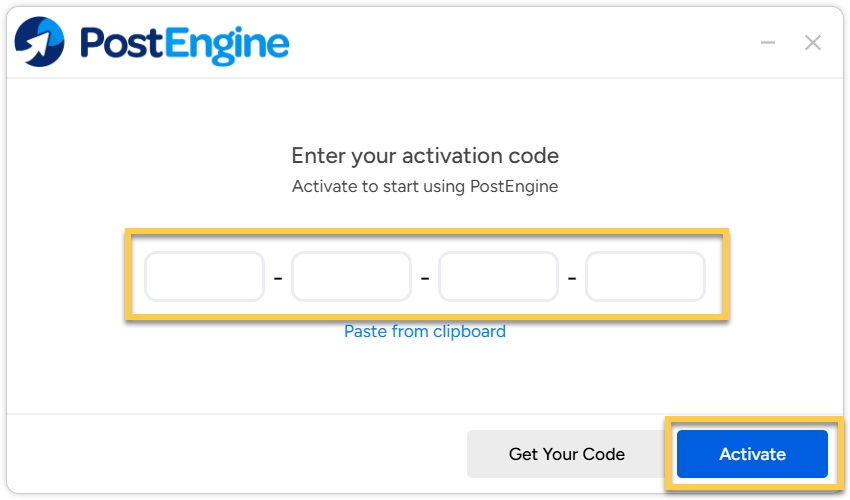
They are 20-letters long and split into 4 groups of 5, separated by dashes like this:
ABCDE-FGHKM-PRTWX-ZABCD
Activation codes never expire and are unique to your property; the same code can be used to activate multiple installations of PostEngine.
Add an activation code
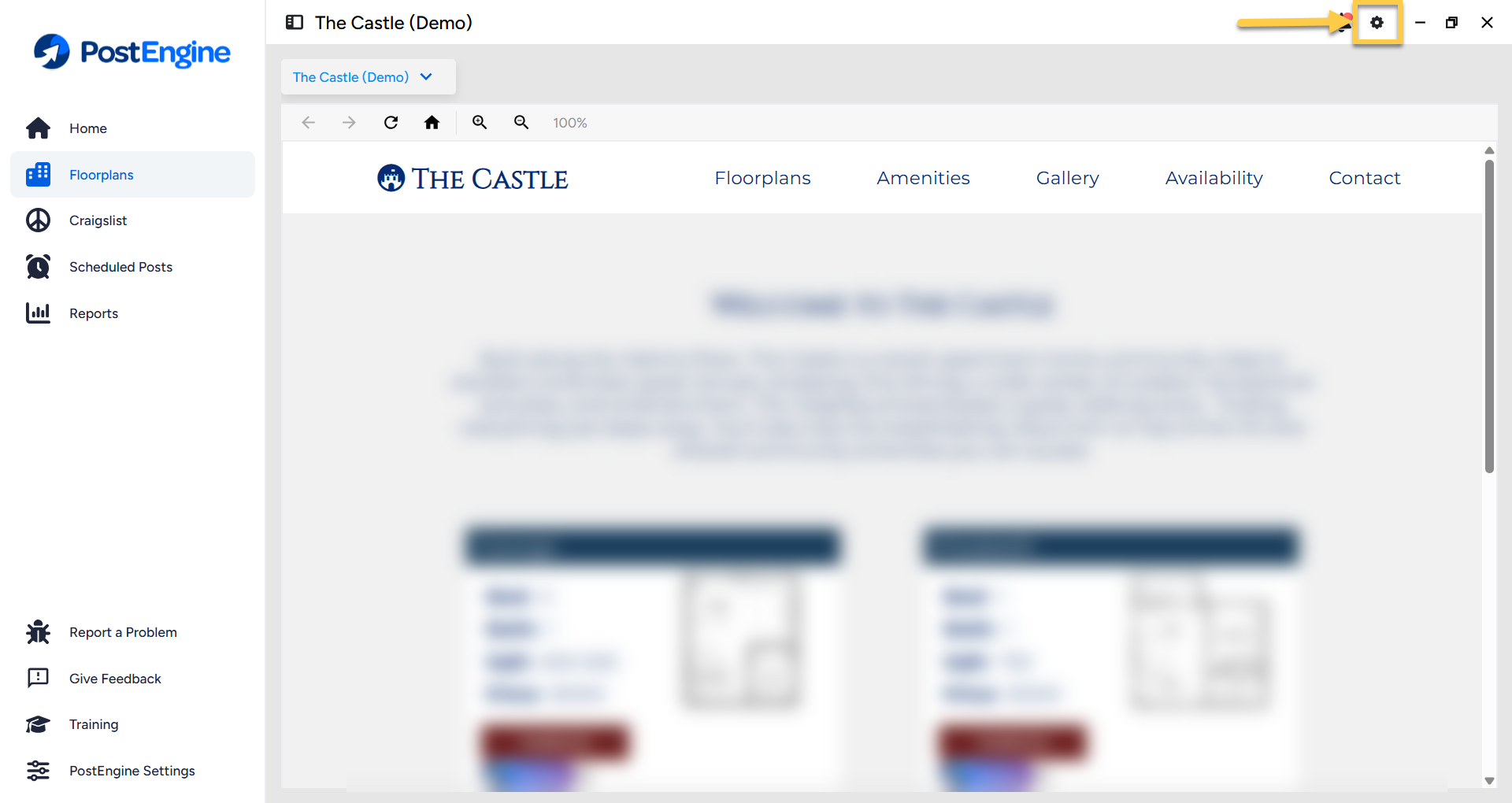
- Open PostEngine for Desktop.
-
Click the gear icon in the upper-right corner.
-
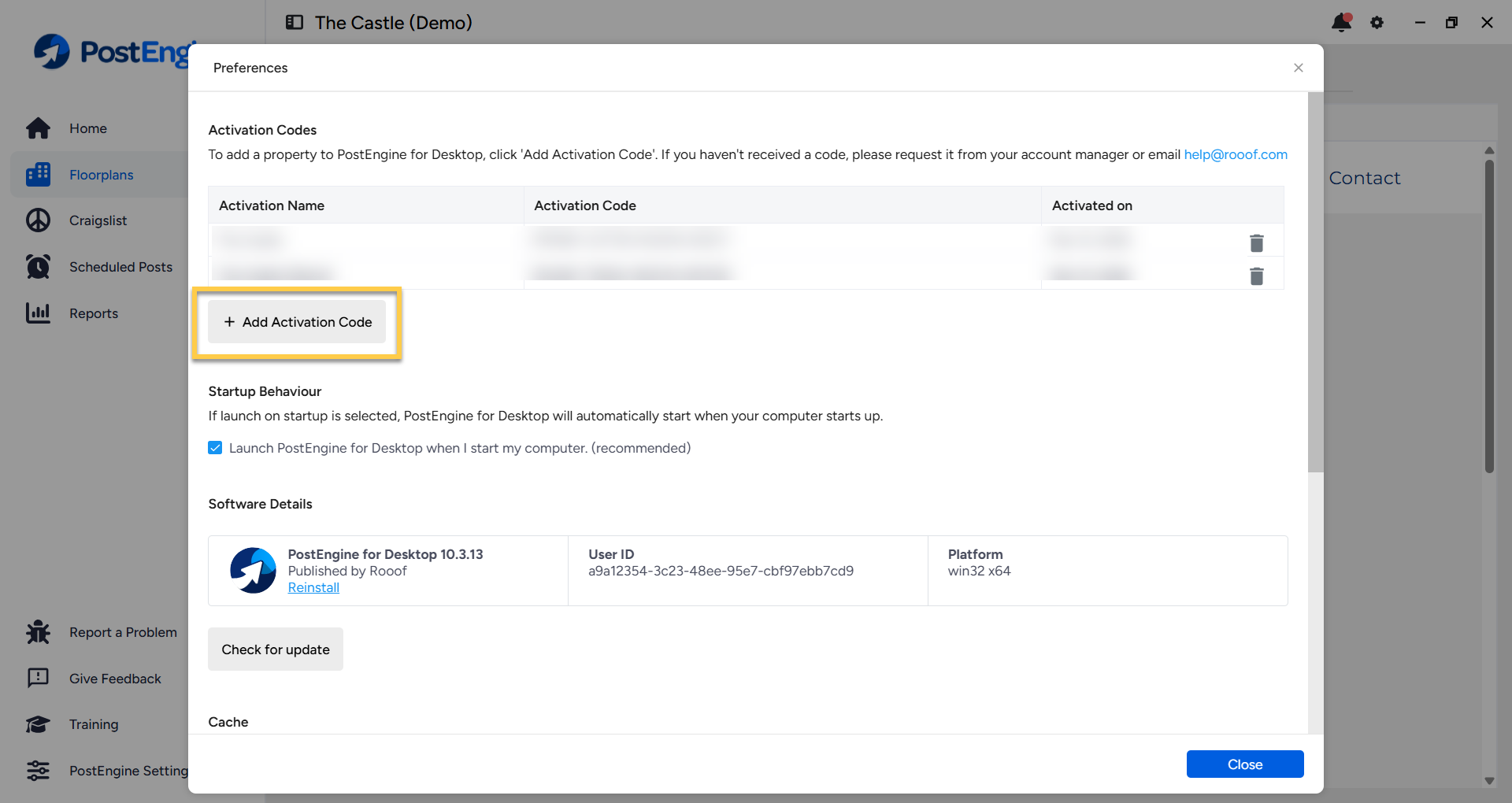
Click + Add Activation Code.
- Enter your activation code.
-
Click Activate.
-
Congratulations, you've successfully activated! Click Ok.
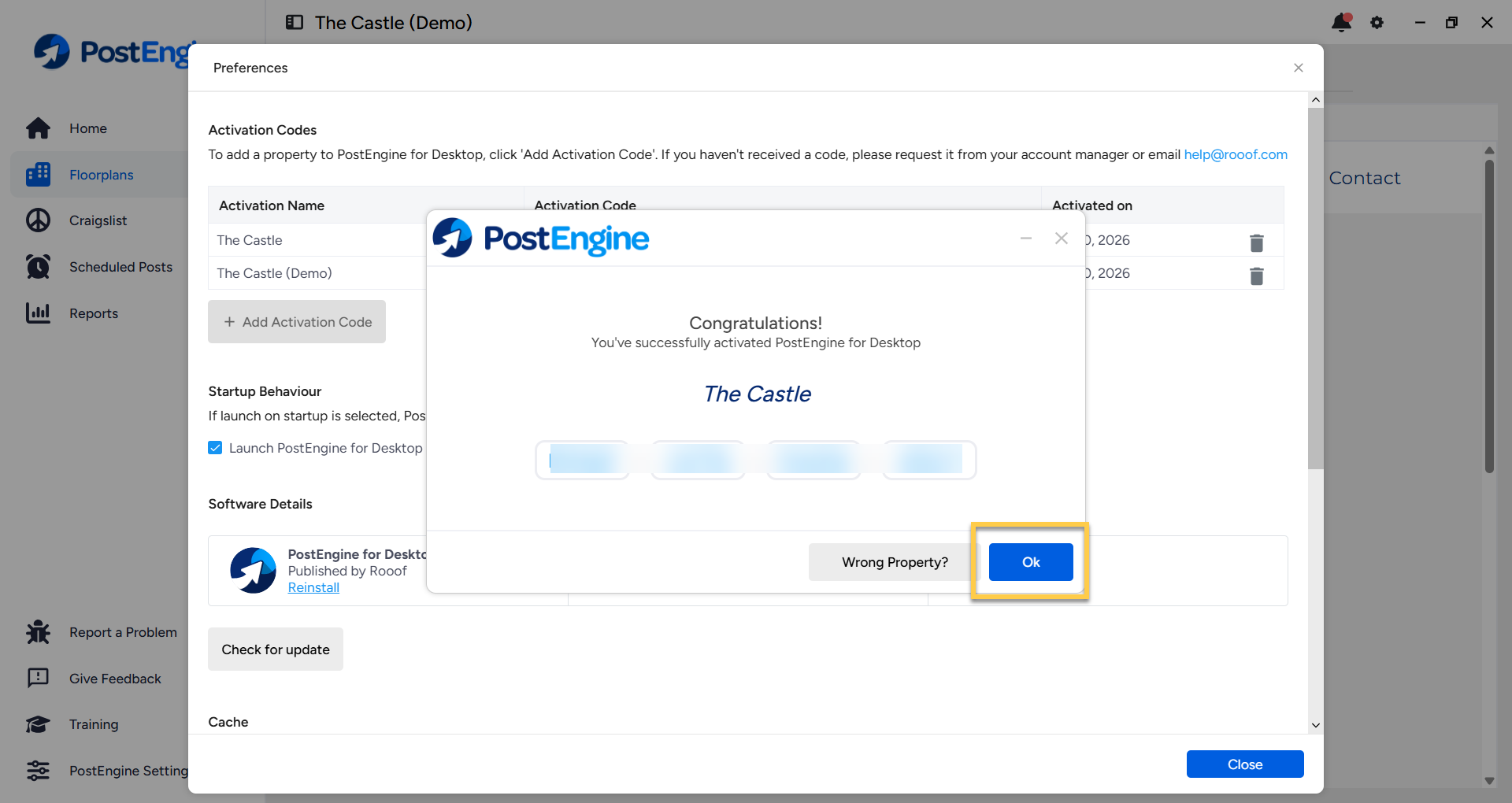
You'll now see a list of the properties you're activated for. If you need to activate additional properties, repeat steps 2-6.
Posting for multiple properties
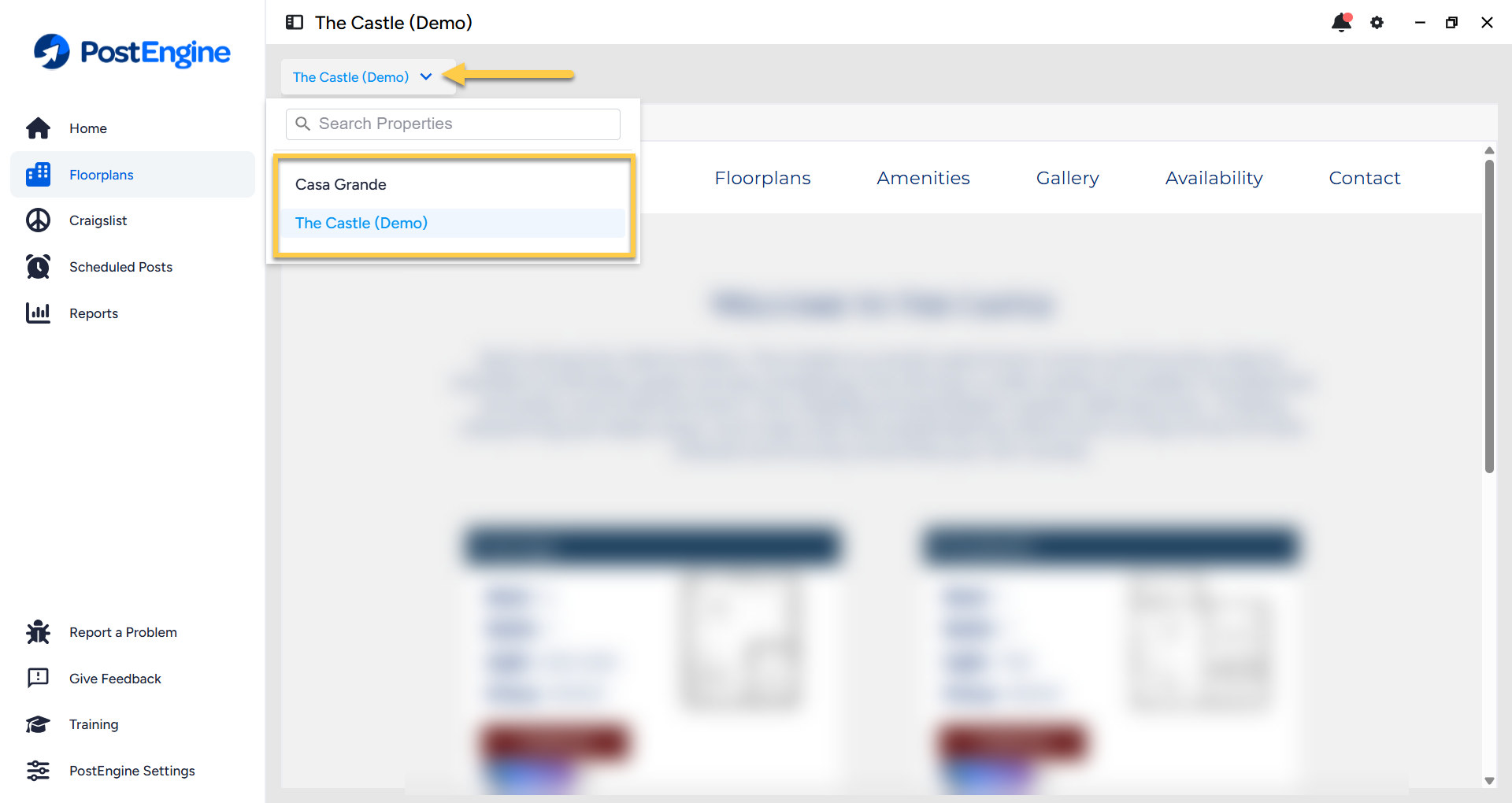
To switch between the properties you're activated for:
- Click on the arrow next to the property name to open the drop-down menu.
- Click to select the property you'd like to post for, or use the search bar.
-
The My Property page will update to the corresponding property website. Happy posting!
Remove an activation code
- Open PostEngine for Desktop.
-
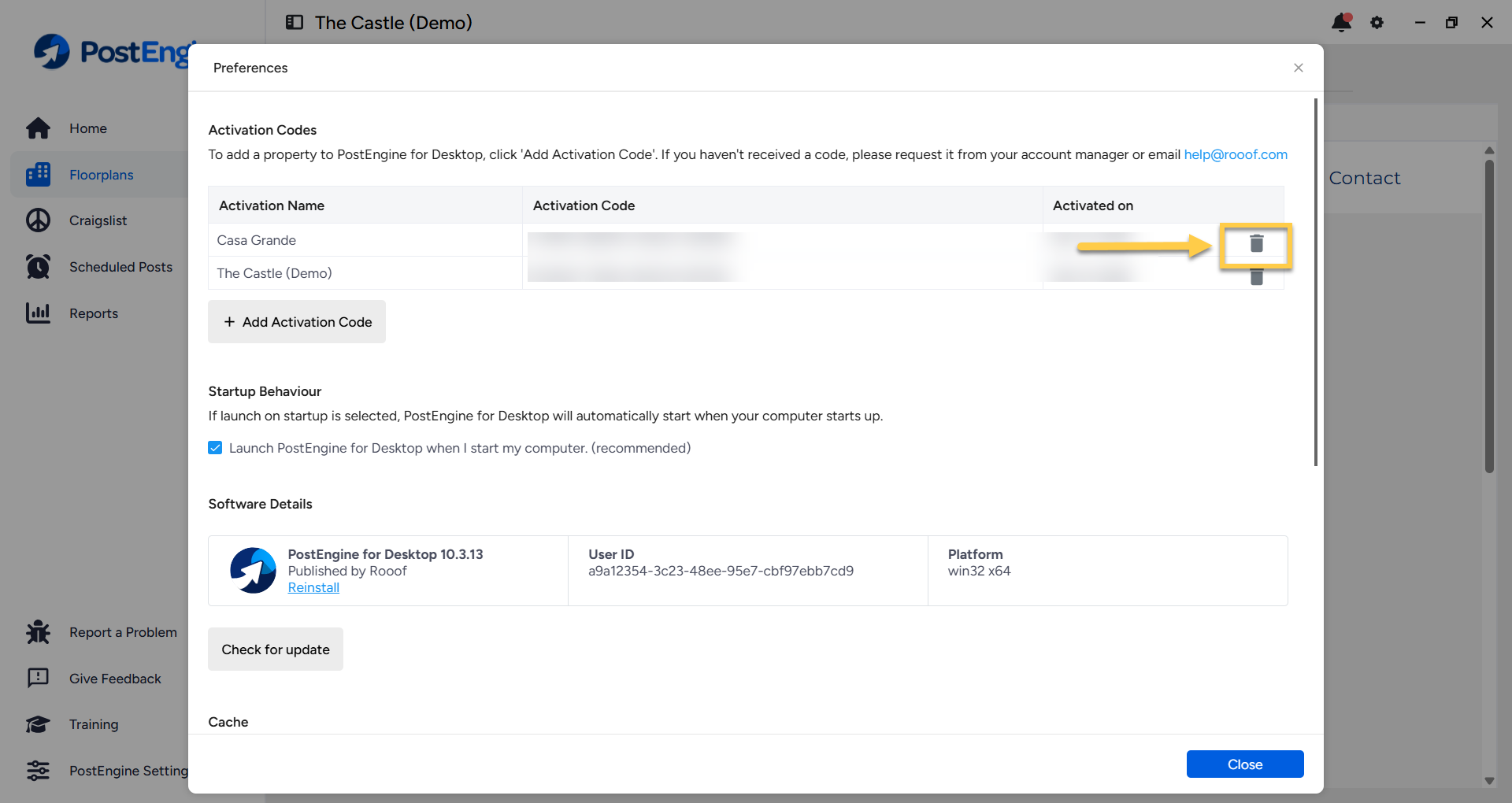
Click the gear icon in the upper-right corner.
-
Click the trash can next to the code you'd like to remove.
-
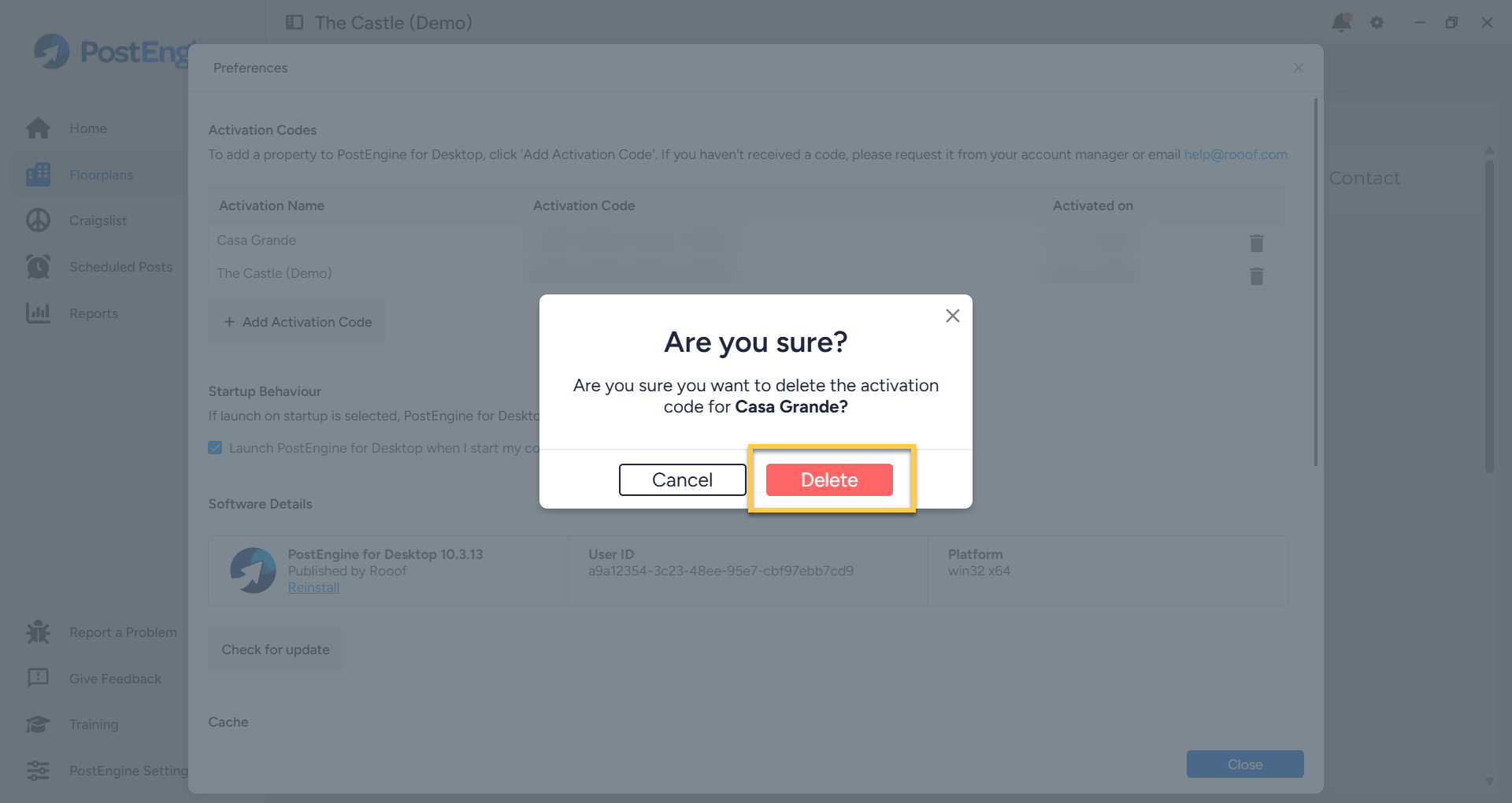
You'll be prompted to confirm the removal. Click Delete to confirm. You're all done!
Tutorial Video
Troubleshooting
Why do I need an activation code?
Activation codes help ensure PostEngine functions correctly and allow us to accurately report activity for your property.
Where do I get my activation code?
Your activation code is included in the welcome email you receive when your property is onboarded to PostEngine. You can also request the code anytime from the self-serve install page or by contacting our support team at help@rooof.com.
I see an error message when I enter my activation code.
Please reach out to our support team by emailing help@rooof.com, we're happy to help troubleshoot!