
Craigslist Login Verification
In this article
Completing Login Verification with PostEngine for Desktop
Overview
Login verification is Craigslist's security feature. It's been put in place to make sure an account is not being accessed by unauthorized users. It's common to see it the first time you use a Craigslist account or if you attempt to log in to your account on a different computer.
Completing Login Verification with PostEngine for Desktop
- Open PostEngine for Desktop and navigate to your community availability page by clicking My Property. Click the Post Now button next to the floorplan you'd like to post for.
-
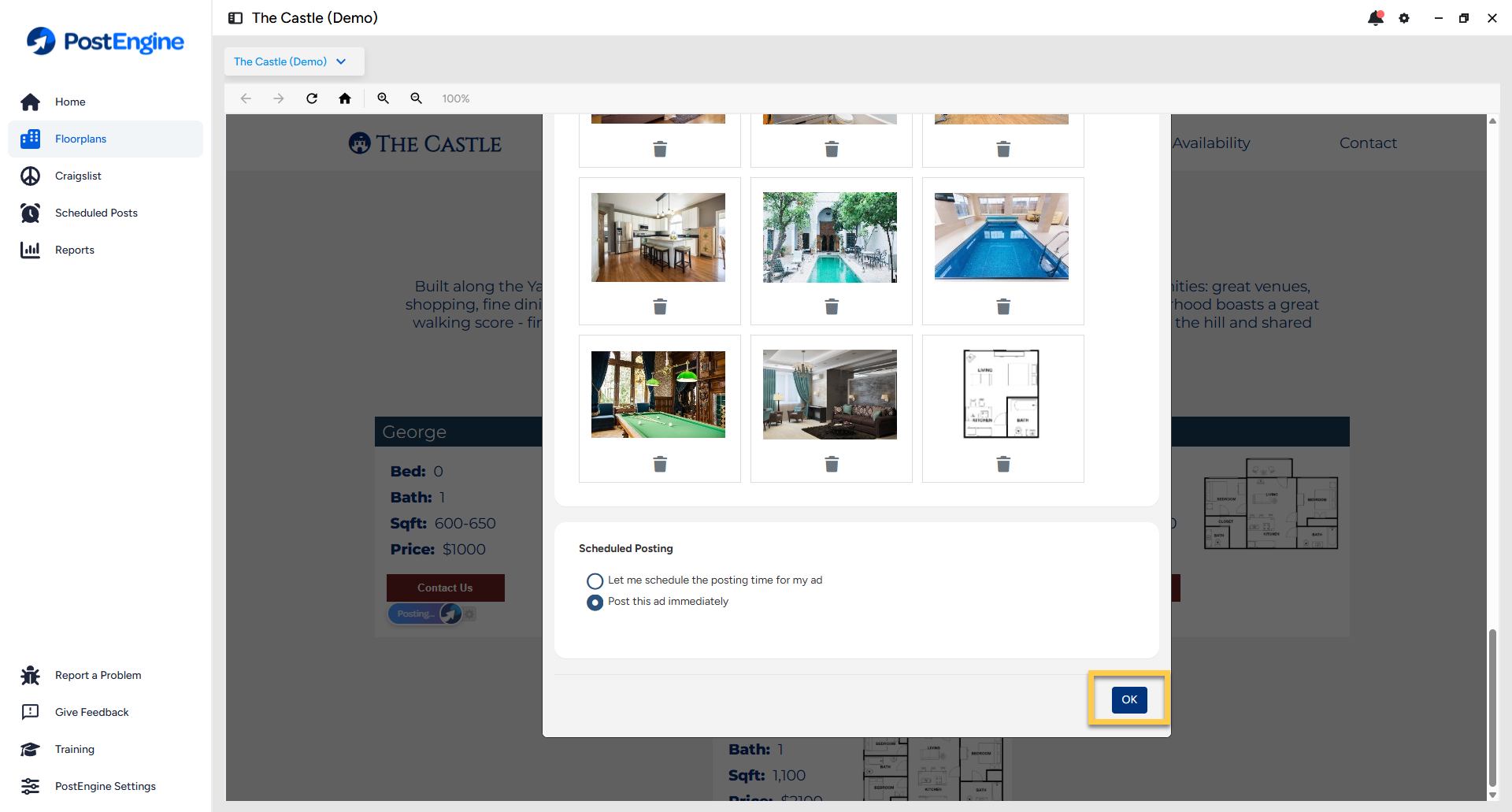
After you’ve checked your ad content in the Preview and select "Post this ad immediately" and click OK, PostEngine will log into your Craigslist account to create your ad. This is when you may see a request from Craigslist to complete further verification.
-
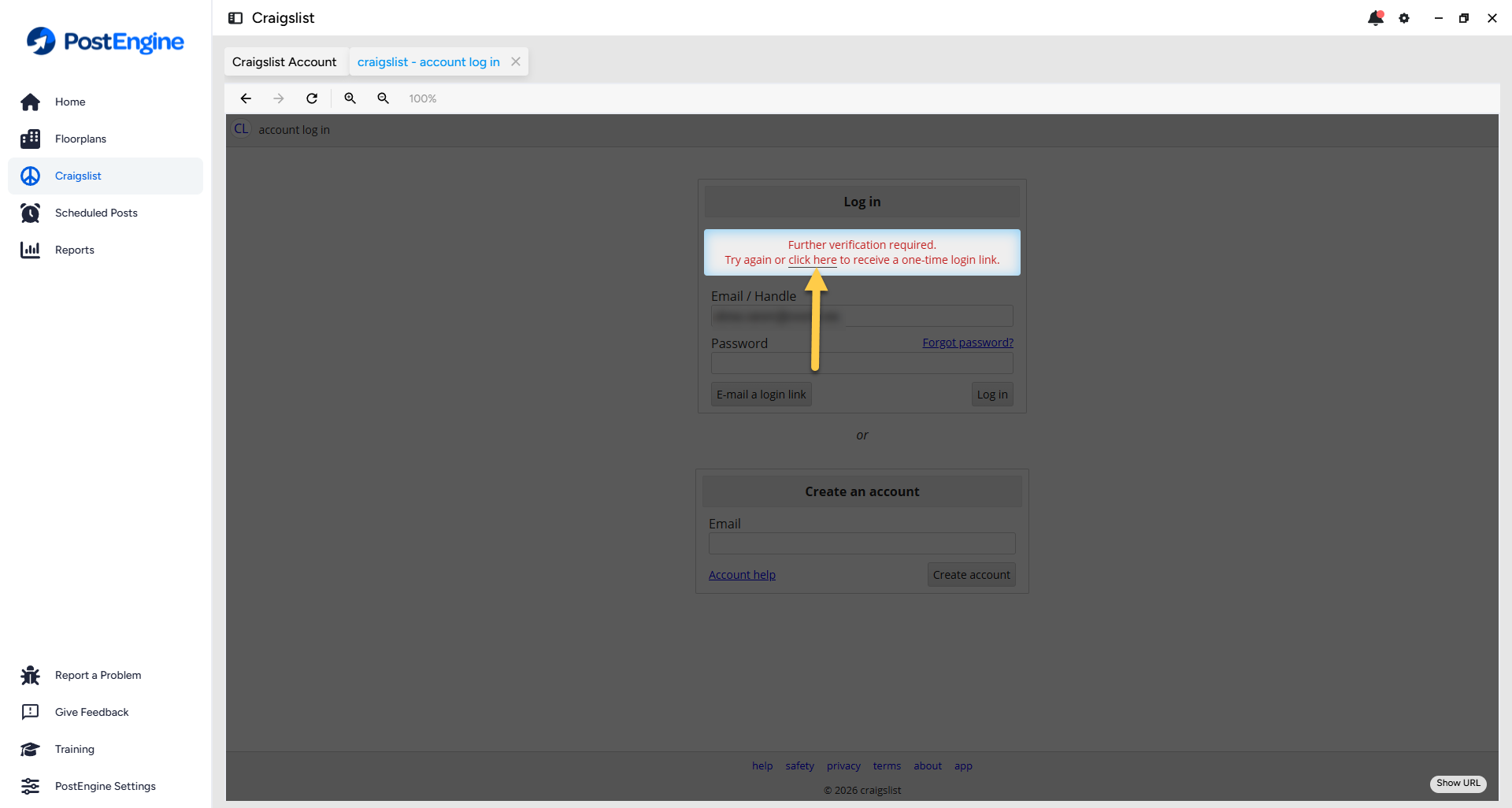
If the posting process stops at the login screen, please click where it says click here to receive the link.
- Open the email inbox that is associated with your Craigslist account (the inbox where you receive Craigslist emails like posting confirmations, etc.). Emails from Craigslist sometimes end up in your junk/spam folder, so be sure to check there.
-
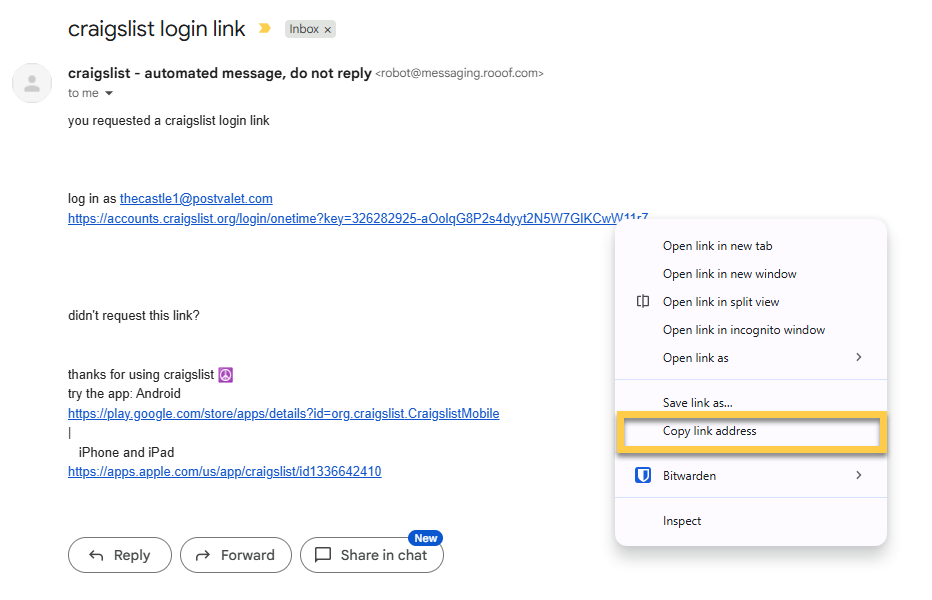
Once you've located the email, right-click on the link (or purple button) and click Copy hyperlink or Copy link address.
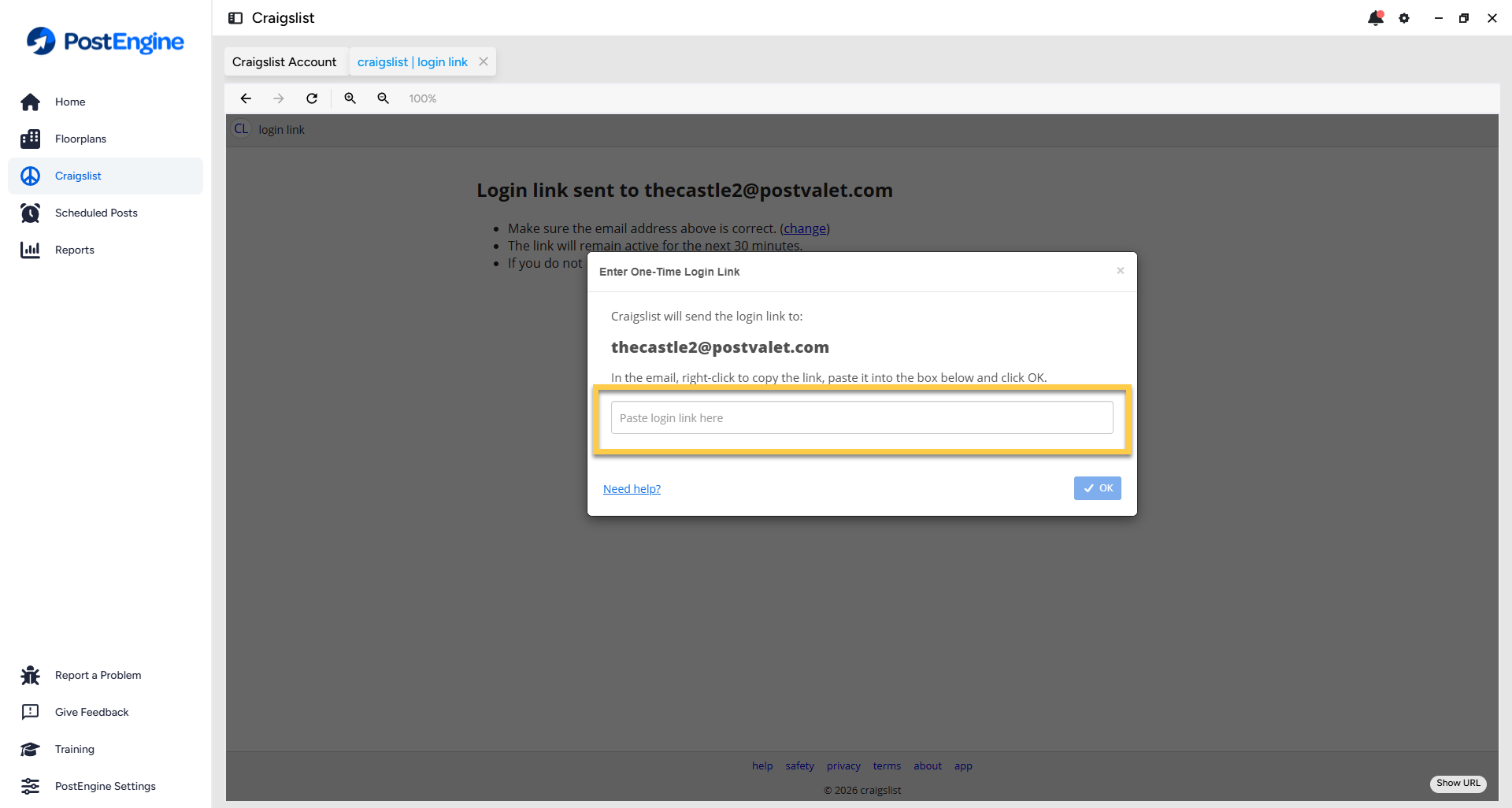
- Return to the PostEngine for Desktop program and paste the login link into the box where it says Paste login link here.
-
Click OK to verify your account.
- This should log you into your Craigslist account. Once you see the Craigslist account homepage, the verification process is complete!
- Click Floorplans to return to your floorplans page and click Post Now to start a new post.
Completing Login Verification with PostEngine for Chrome
During the posting process, PostEngine will try to log in to your Craigslist account. This is when you may see a request from Craigslist to complete login verification.
When this happens, you'll see a notification from Craigslist with a link to click so that they can send you a one-time login link. In order to complete login verification, follow the steps below:
-
Click the click here button to receive the link (the link expires in 30 minutes, so be sure to complete verification as soon as possible).

- Go to the email inbox that is associated with your Craigslist account (the inbox where you receive Craigslist emails like posting confirmations, etc.). Emails from Craigslist sometimes end up in your junk/spam folder, so be sure to check there.
-
Once you've located the email, right-click on the link (or purple button) and click Copy hyperlink or Copy link address.
- Open the link in Google Chrome by pasting the link into the address bar of your Chrome browser window and pressing Enter. This should bring you directly to your account home page.
- Your account should now be verified. Return to the floorplans page of your property website and click the Post Now button to start a new post.

Tutorial Videos
Completing Login Verification with PostEngine for Desktop
Completing login verification with PostEngine for Chrome
Troubleshooting
I clicked to get the one-time login link, but I can't find the email from Craigslist.
There is sometimes a delay when waiting for an email from Craigslist. First, make sure you're looking in the correct inbox. The email will be sent to the address associated with your Craigslist account or, if you're on our lead tracking (email) system and don't recognize the address associated with your account, check the inbox where you regularly receive Craigslist robot emails, like posting confirmations. Please also check your junk/spam folders as they can sometimes get stuck there! If you've done all of these things and still can't find the email containing the link, please reach out to our Support Team at help@rooof.com, we're happy to help!
I accidentally opened the one-time login link in a different internet browser (not in Google Chrome)/outside PostEngine for Desktop.
No problem! Start another post, Craigslist will likely ask you to complete the process again. This time, you can open the link in Google Chrome/inside PostEngine for Desktop.
I successfully completed login verification but I'm still getting prompted to complete it every time I post.
Please reach out to our Support Team at help@rooof.com, we'll help troubleshoot!